
Accidental digital purchases frustrate many parents. In this guide, I will show you how to block in-app purchases on a Fire Tablet for kids. I have worked extensively inside the Fire OS ecosystem and have seen how easily children can trigger in-app transactions, especially inside games like Roblox.
In this guide, I will show you exactly how to block in-app purchases on a Kids Amazon Fire Tablet using a three-tier security approach. I will also explain how to manage Amazon Kids+ settings, secure 1-Click purchasing, and activate the “Request to Buy” feature inside the Amazon Parent Dashboard.
You will leave this guide with a fully locked-down device.
Why Parents Must Disable Amazon Appstore Purchases for Kids
Children do not understand digital currency systems. Games convert real money into tokens, gems, or Robux, which creates psychological distance between action and cost.
Without proper configuration, your child can:
- Purchase digital currency inside apps
- Subscribe to services through the Appstore
- Bypass soft restrictions in weak child profiles
- Trigger 1-Click payments instantly
You prevent all of this when you properly configure device-level, account-level, and cloud-level controls.
The Three-Tier Lockdown Methodology (Zero-Leakage Security)
Most guides show one toggle. I recommend three independent layers of protection.
| Tier | Control Level | What It Blocks | Risk If Skipped |
| Tier 1 | Device-Level | In-app purchases on the tablet | Child can buy inside apps |
| Tier 2 | Account-Level | 1-Click purchases | Instant charges on Amazon account |
| Tier 3 | Cloud-Level | Purchase approvals | Purchases bypass local settings |
Let’s implement all three.
Tier 1: Device-Level: Toggle Off In-App Purchasing (Child Profile)
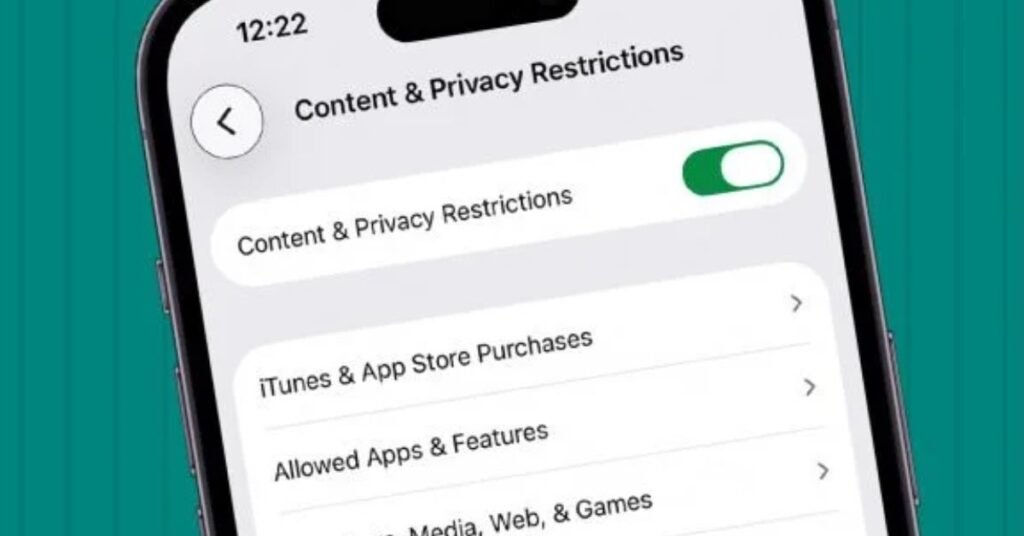
You must disable the in-app purchasing toggle inside the child profile.
This applies to tablets running Fire OS 8 and earlier versions.
Steps:
- Open Settings
- Tap Profiles & Family Library
- Select your child’s profile
- Tap Amazon Kids Settings
- Locate In-App Purchasing
- Toggle it OFF
This step blocks most direct purchase attempts inside apps like Roblox.
Tier 2: Account-Level: Password-Protect Amazon 1-Click Settings
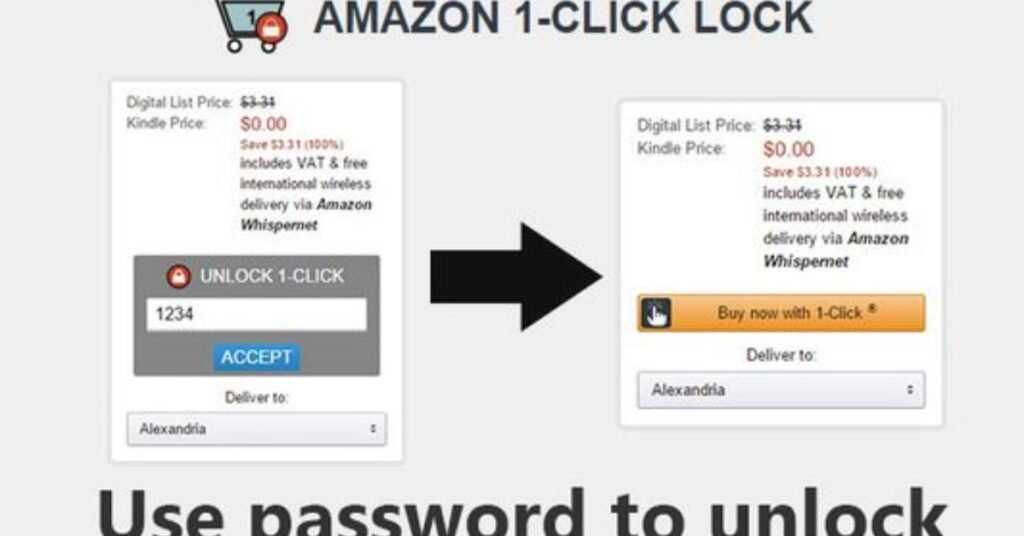
Even if you disable in-app purchases, Amazon may still allow 1-Click digital purchases.
You must secure your primary Amazon account.
Steps:
- Log in to your Amazon account (desktop recommended)
- Navigate to Account > Your Payments
- Select 1-Click Settings
- Disable 1-Click or require password authentication
This step prevents one-tap digital spending.
Tier 3: Cloud-Level: Activate “Request to Buy” in Parent Dashboard
You should implement purchase approvals via the Amazon Parent Dashboard.
This dashboard controls cloud-based permissions for Amazon Kids+ (formerly FreeTime).
Steps:
- Visit the Amazon Parent Dashboard online
- Select your child
- Open Settings
- Enable Request to Buy
When you activate this feature, Amazon sends you approval notifications before completing purchases.
You now control spending remotely.
Fire OS Version Compatibility Matrix
Parents often struggle because menu layouts differ between devices.
I compiled this compatibility matrix:
| Feature Location | Fire OS 6 | Fire OS 7 | Fire OS 8 |
| In-App Purchasing Toggle | Under Parental Controls | Under Child Profile Settings | Under Amazon Kids Settings |
| Parent Dashboard Link | Not integrated | Web-only | Integrated shortcut |
| Request to Buy | Limited | Available | Fully integrated |
| UI Layout | Legacy | Transitional | Modern redesign |
If you use an older Fire HD 8, you may not see the same interface as newer Fire HD 10 Kids Pro models.
Case Study: The “Roblox Refund” Recovery Path
A parent contacted me after their child spent $200 inside Roblox.
Here is exactly what worked.
Step 1: Lock Down the Device Immediately
The parent:
- Disabled in-app purchases
- Secured 1-Click
- Activated Request to Buy
Step 2: Contact Amazon Within 24 Hours
The parent contacted Amazon customer service and used this phrasing:
“My minor child made unauthorized digital purchases on a Fire Tablet. I have secured the account and request a one-time courtesy refund.”
Amazon granted a one-time courtesy refund after verifying timestamps and account activity.
Step 3: Monitor Digital Orders
The parent checked:
- Account > Digital Orders
- Appstore transaction history
Quick action increases refund approval odds.
Managing Amazon Kids+ Subscription Settings
You should regularly review subscription permissions for Amazon Kids+.
Inside Parent Dashboard, you can:
- Adjust age filters and content management
- Remove specific apps
- Restrict web browsing
- Control daily screen time
These controls strengthen digital well-being for toddlers and older children alike.
Blocking Roblox Purchases Specifically
Parents frequently ask about Roblox.
Roblox uses in-app digital currency, which makes it high risk.
To block Roblox purchases:
- Disable In-App Purchasing
- Activate Request to Buy
- Remove stored payment methods if necessary
- Consider removing Roblox from the child profile
You must combine all steps for complete prevention.
Fire HD 8 Kids Pro vs. Fire HD 10 Kids: Security Differences
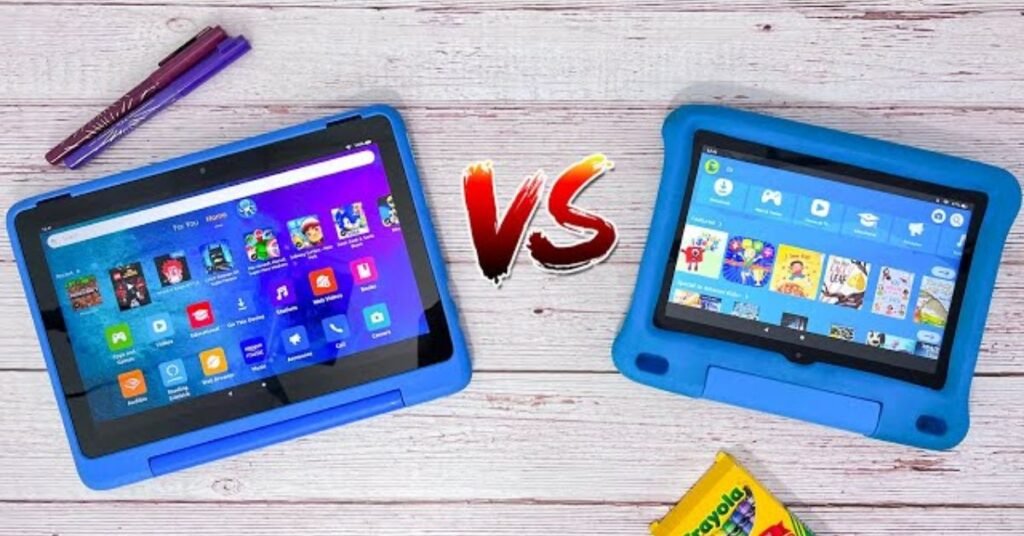
| Feature | Fire HD 8 Kids Pro | Fire HD 10 Kids |
| OS Version | Often Fire OS 7 | Often Fire OS 8 |
| Menu Layout | Slightly older UI | Updated UI |
| Parent Dashboard Integration | Partial | Full shortcut integration |
| Performance | Moderate | Faster navigation |
Newer models provide clearer parental control interfaces, but all models require manual configuration.
Multimedia Integration Plan (For Maximum Trust)
You should include the following assets in your blog:
Instructional Diagram
Create a flowchart showing:
- Device Settings
→ Amazon Account
→ Parent Dashboard
This clarifies the hierarchy.
60-Second Video Walkthrough
Record a vertical video showing:
- Opening Settings
- Tapping Profiles
- Locating the In-App Purchasing toggle
Keep it mobile-optimized.
Interactive Security Checklist
Include a checklist like this:
- ☐ Disabled In-App Purchasing
- ☐ Secured 1-Click
- ☐ Activated Request to Buy
- ☐ Reviewed Kids+ age filters
- ☐ Removed unused payment methods
When readers check all boxes, they complete a full lockdown.
Annotated Screenshots
Add high-resolution screenshots with arrows pointing to:
- Settings gear
- Parental Controls
- In-App Purchasing toggle
Visual proof increases trust.
FAQ
1. Where is the in-app purchasing toggle located?
You will find it under Child Profile → Amazon Kids Settings → In-App Purchasing. The location varies slightly across Fire OS versions.
2. Can my child bypass a child profile limitation?
A child cannot bypass restrictions without the parent PIN. However, weak PIN protection or unsecured 1-Click settings can create vulnerabilities.
3. Does disabling Amazon Kids+ stop all purchases?
No. You must also disable 1-Click and enable Request to Buy. Subscription settings alone do not block Appstore spending.
4. Can I get a refund for accidental purchases?
Yes. Amazon often grants a one-time courtesy refund if you contact support quickly and secure the account immediately.
5. Do settings sync across devices?
Yes. Amazon device synchronization allows cloud-level settings to apply across registered Fire Tablets under the same account.
Conclusion
You protect your child and your wallet when you apply all three tiers:
- Device-Level toggle
- Account-Level 1-Click protection
- Cloud-Level Request to Buy
Most parents rely on one setting and assume safety. That assumption creates risk.
When you implement this full parental controls guide, you eliminate accidental purchases and gain complete control over your child’s Fire Tablet environment.
If you want true digital well-being for your household, configure the system today and audit it quarterly.
